How to make a QR code for your restaurant menu
A QR code menu lets diners pull up your menu on their own phone in seconds. Whether you run a restaurant, café, pub or food truck, this guide takes you from getting your menu online to printing a branded code for your tables, all for free.
By Aidan Lowson · Updated
Why restaurants use QR codes
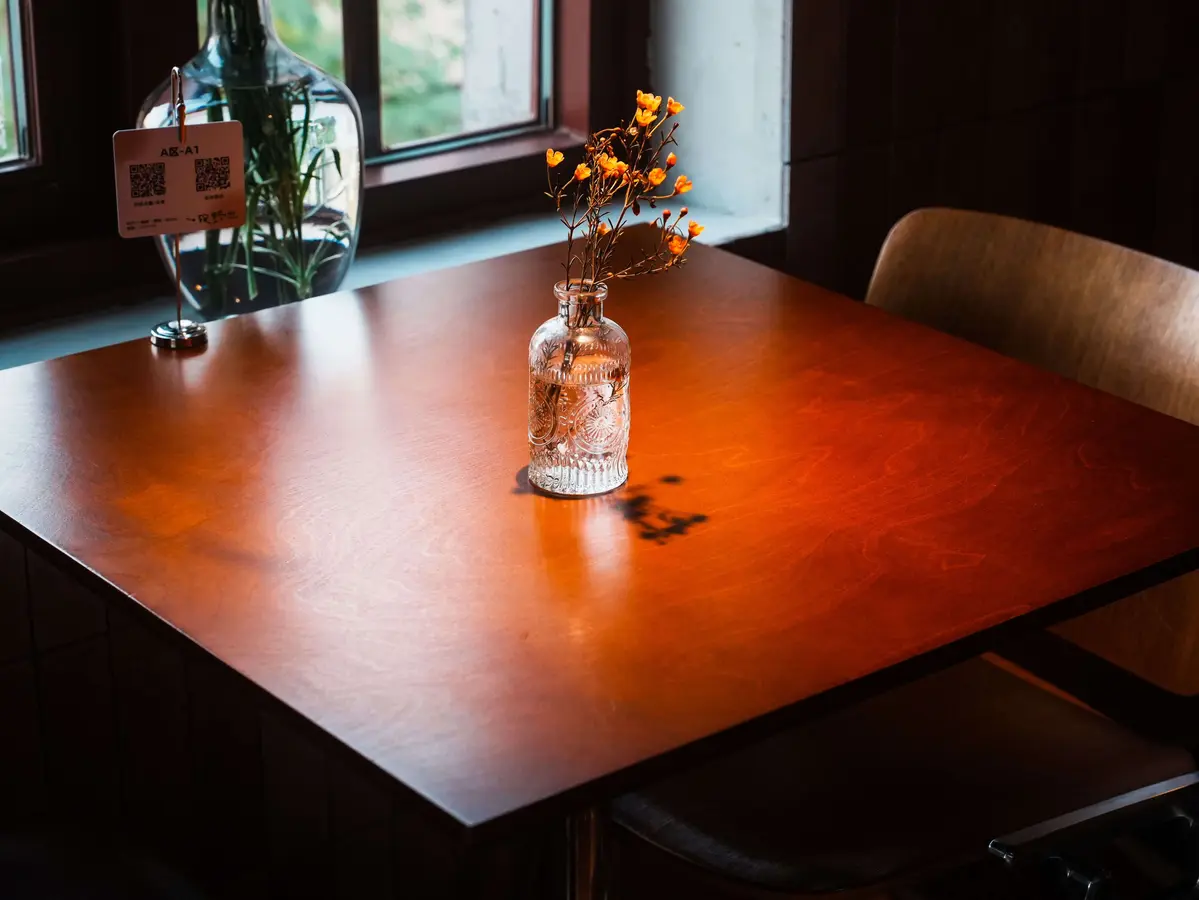
QR code menus, sometimes called digital or contactless menus, went mainstream during the COVID-19 pandemic, and they stuck around because they make life easier for restaurants and diners alike:
- Change your menu without reprinting. Update a price, add a special or take a dish off, and every table sees it straight away.
- Save on printing. Paper menus get stained, torn and out of date. A printed QR code lasts for months.
- Let diners browse while they wait. Guests can read the menu as soon as they sit down, or before they even walk in.
- Keep the details in one place. Allergens, dietary labels and photos fit far more easily on a web page than on a laminated card.
QR codes work best alongside paper menus, not instead of them. Some guests don't have a smartphone, or would rather not use one at dinner, so keep a few printed copies to hand.
What you need before you start
- A link to your menu. If you don't have one yet, step 1 covers the options.
- Your logo (optional). A square PNG of around 1000 x 1000 px works best.
- Your brand colours as hex codes, such as #1F2A2A. You'll find them in your brand guidelines, or ask whoever designed your logo.
- A couple of phones for testing, ideally one iPhone and one Android.
Step 1: Put your menu online
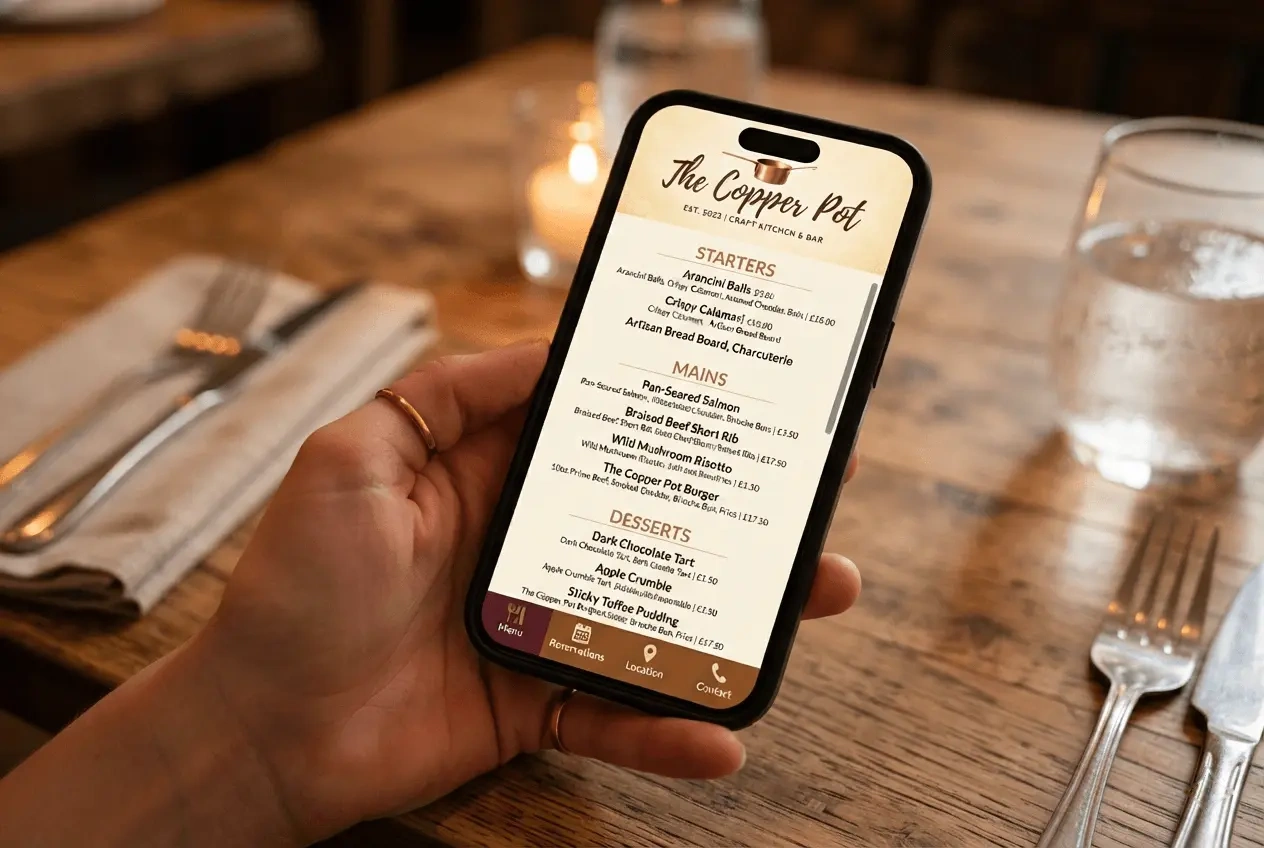
A QR code is a shortcut to a link, so your menu first needs to live somewhere online. The most common options are:
- A page on your own website. The best choice: it loads quickly, fits any screen, and the dishes on it can show up when people search Google.
- A PDF. Quick if you already have a designed menu. Compress it so it loads fast on mobile data, and check the text is readable without zooming.
- A Google Doc or Canva design. Free and easy to edit. Set sharing to "Anyone with the link", or diners will see an access request instead of your menu.
- Your ordering or booking platform, if it already shows your menu.
Use a link that won't change
A QR code points at one exact address, permanently. If that address stays the same when you update the menu, like yourrestaurant.com/menu, you can change dishes and prices without ever reprinting the code. Watch out for file-sharing services that create a new link every time you upload a new version.
Shorter links are better too. The more characters in the link, the denser the QR code, and dense codes are harder to scan when printed small. If you want to count scans, you can add a tracking tag such as ?utm_source=qr-table to the end of the link and see the visits in your analytics. Just keep in mind it makes the code a little denser.
Step 2: Create your QR code
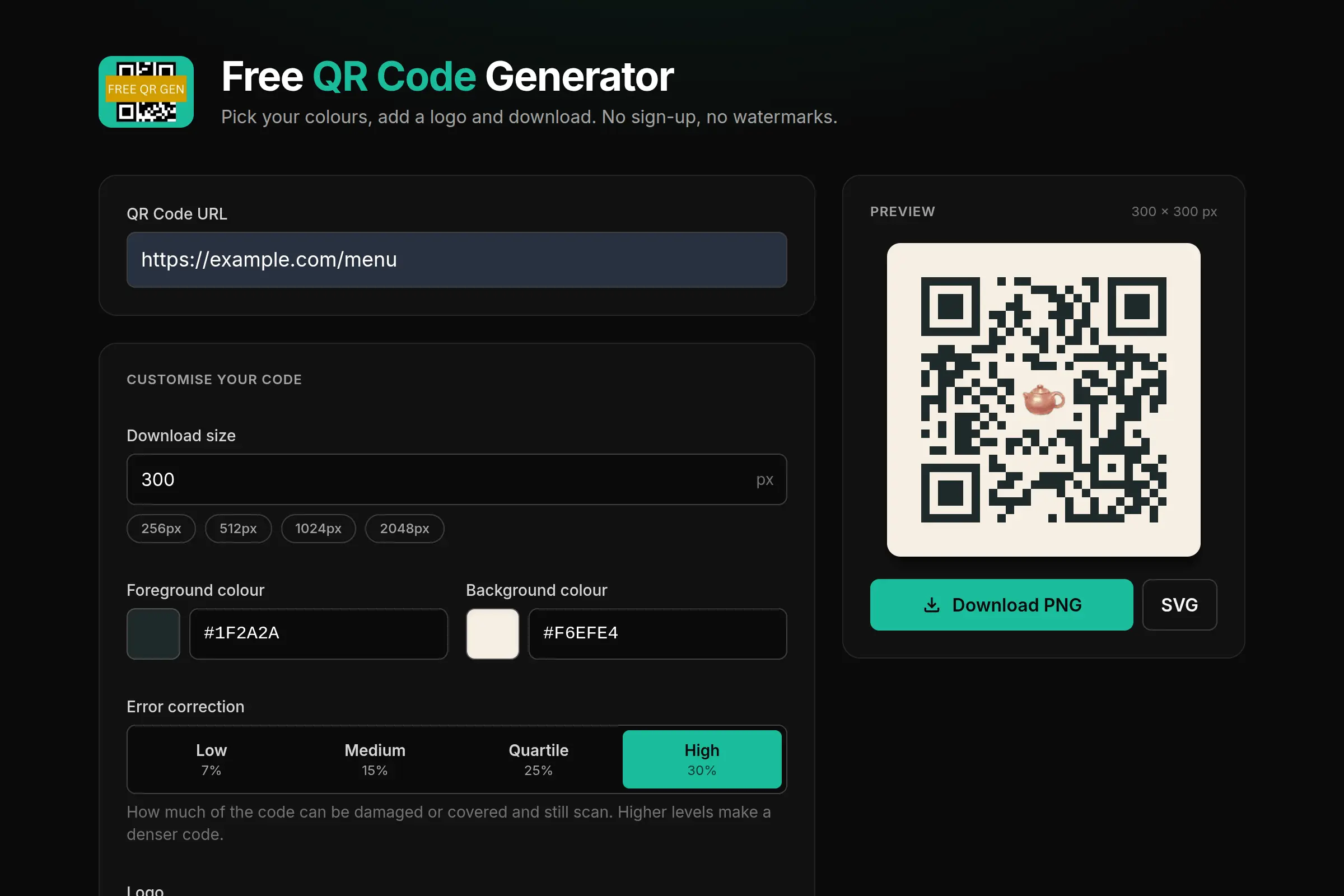
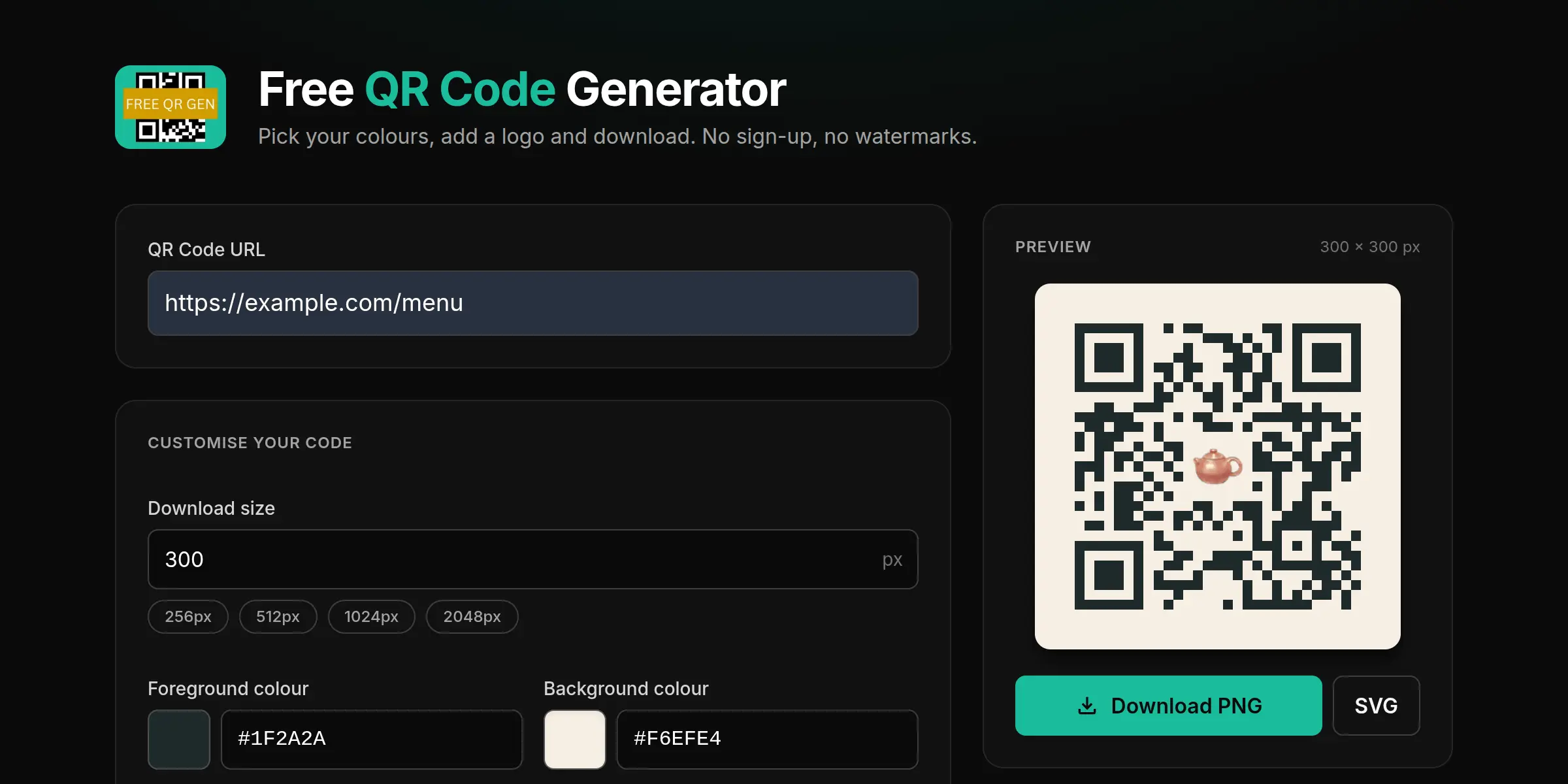
- Open the Free QR Gen generator and paste your menu link into the QR Code URL box. The preview updates as you type.
- Set your colours. Use your darkest brand colour for the code and a light one for the background. The generator warns you if the contrast is too low, or if the code is light on a dark background, which some scanner apps can't read.
- Upload your logo, then set the logo width and height. Keep it to around 20% of the download size, for example 200 x 200 px on a 1024 px code. The logo doesn't resize with the code, so update it if you change the download size.
- Set error correction to High. Your logo covers part of the code, and error correction is what lets a phone fill in the gaps. There's more on this in how QR codes work.
Step 3: Download the right file
Pick a size, then download. The right format depends on where the code is going:
- SVG for anything printed. SVG is a vector format, so it stays perfectly sharp at any size, from a table sticker to a window poster. Most printers and design tools, including Canva, accept it.
- PNG for screens, such as your website, social posts or an online menu. If you need a PNG for print, choose 2048 px so it stays crisp.
Both are free, with no watermark, and the code never expires.
Step 4: Test it before you print
Never send a QR code to the printer without testing it. A code that scans on screen can still fail on paper, especially once you add brand colours and a logo.
- Print one copy at the final size, on the same paper or card you'll use.
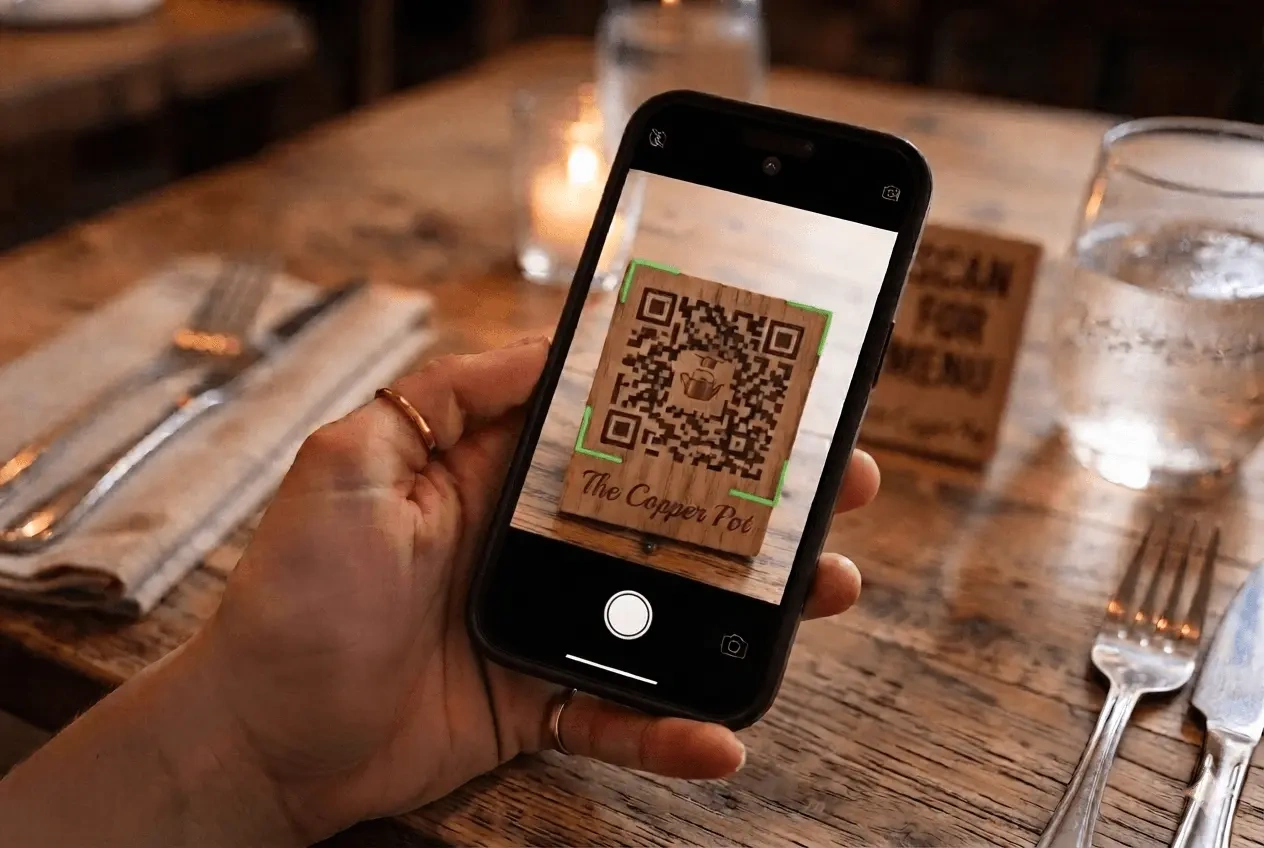
- Scan it with the normal camera app on both an iPhone and an Android phone.
- Test it where it will be used: at the table, in your restaurant's lighting, from where a seated diner would hold their phone.
- Check the link opens the right menu, and that it's the current one.
If it's slow to scan, make the code bigger, make the logo smaller or increase the contrast between the two colours.
Step 5: Print it and place it
How big to print it
A good rule of thumb is that a QR code should be at least a tenth of the distance it's scanned from. A diner scanning from 30 cm away needs a code of at least 3 x 3 cm. For a window sticker read from 2 metres away, go for 20 x 20 cm. Never go below 2 x 2 cm.
Where to put it
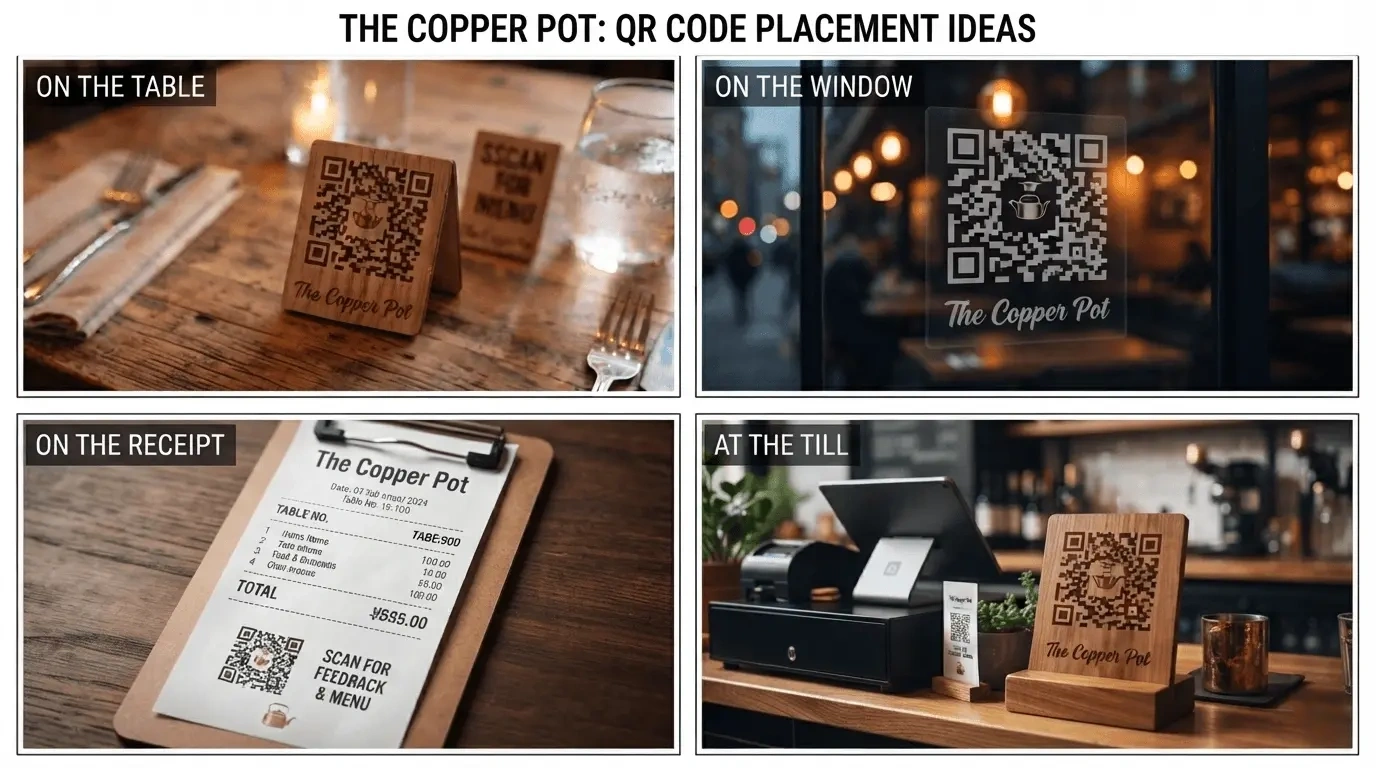
- On every table, in a table tent, stand or sticker. This is where most scans happen.
- In the front window, so passers-by can check the menu before they come in.
- At the till or counter, for takeaway customers waiting to order.
- On receipts and takeaway bags, so customers can find you again.
Make it easy to scan
- Say what it's for. A code on its own doesn't tell anyone what they'll get. Add a short line next to it, like "Scan for our menu".
- Leave a clear margin. Don't let text, borders or the edge of the card touch the code.
- Choose a matt finish. Glossy card and lamination reflect lights, which can stop a phone reading the code.
More ways to use QR codes in your restaurant
The same steps work for any link. A few ideas once your menu code is sorted:
- Google reviews. Link to your review form from receipts or by the door. You'll find the link in your Google Business Profile.
- Bookings. Put your booking page on the front window and takeaway bags.
- Social media. Point diners to your Instagram or TikTok.
- Allergen and nutrition information on its own page, for guests who need the detail.
- Feedback forms and loyalty sign-ups.
Codes made with Free QR Gen never expire, so make as many as you like.
Common mistakes to avoid
- Low contrast. Pale colours, or a light code on a dark background, can fail on some phones. Keep the code dark and the background light.
- A logo that's too big. Even High error correction can only recover so much. Keep the logo to around 20% of the code's width.
- Printing too small. Stick to the one-tenth rule, and never go below 2 x 2 cm.
- Cropping the margin. Scanners need the empty border around the code to find it.
- Linking to something that moves. If the page or file behind the code is deleted or renamed, every printed code breaks at once.
- Slow or desktop-only menus. A huge PDF, or a page diners have to zoom into, is frustrating on mobile data.
- Paying for codes that can expire. Some paid generators make "dynamic" codes that redirect through their servers and stop working if you cancel your subscription. A static code links straight to your menu and keeps working for as long as your menu link does.
Frequently asked questions
Is it free to make a QR code for my restaurant menu?
Yes. Free QR Gen is completely free, with no sign-up and no watermark. You can add your logo, choose your colours and download your code as a PNG or SVG.
Will my menu QR code expire?
No. Codes made with Free QR Gen are static: the link is stored in the code itself, so it keeps working for good. It will only stop working if the page it points to goes offline.
Can I change my menu without reprinting the QR code?
Yes, as long as the code points at a link that stays the same, such as a page on your website or a PDF you replace at the same address. Update the menu at that link and every printed code shows the new version.
What size should a menu QR code be printed?
At least 2 x 2 cm, and bigger the further away people scan from. A good rule is a tenth of the scanning distance: around 3 x 3 cm on a table, and 20 x 20 cm for a window read from 2 metres away.
Should I use a PDF or a web page for my menu?
A web page is usually better: it loads faster on mobile, fits any screen and can show up in Google searches. A PDF is fine if you already have one, as long as it is small and readable without zooming.
Create your restaurant menu QR code now, free →
QR Code is a registered trademark of DENSO WAVE INCORPORATED.